
What is MCP?
MCP, or Model Context Protocol, is an open standard developed by Anthropic that allows AI models, like Gemini or GPT4, to interact with external tools and data sources, like Timebase Historian. AI models work best when they have "context" - think of the tags, their metadata, and their data as being the "context", MCP as the connector or "protocol", and Gemini as the AI "model". The embedded MCP Server in Timebase Historian exposes "tools" to AI Agents and Assistants to access and analyze time-series data directly.
Where to find it?
The MCP Server is built directly into the Timebase Historian and exposes a number of "tools" and "prompts" for compatible AI Agents and Assistants to make use of. Timebase Historian implements an HTTP MPC Server.
The "entry point" to the MCP is the following address:
URL http://<yourHistorianAddress>:4511/mcp
Timebase Historian implements a Streamable HTTP (SSE) MCP Server — when configuring an AI client, select HTTP transport, not STDIO.
Here is an example connection using Postman:
- In Postman, click "New", then select "MCP"
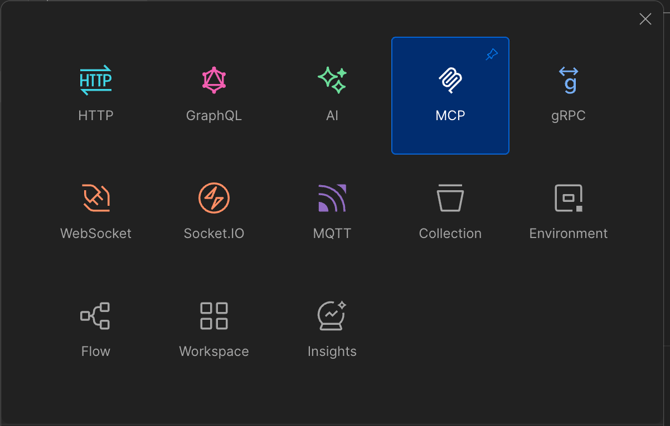
- Timebase supports Streamable HTTP (SSE) MCP - make sure to select "HTTP", not "STDIO"
- Enter the URL as specified above
- Click "Connect"
- If your Historian is running and the connection is successful, Postman will access the MCP Server and request information about the "tools" and "prompts" that are exposed:
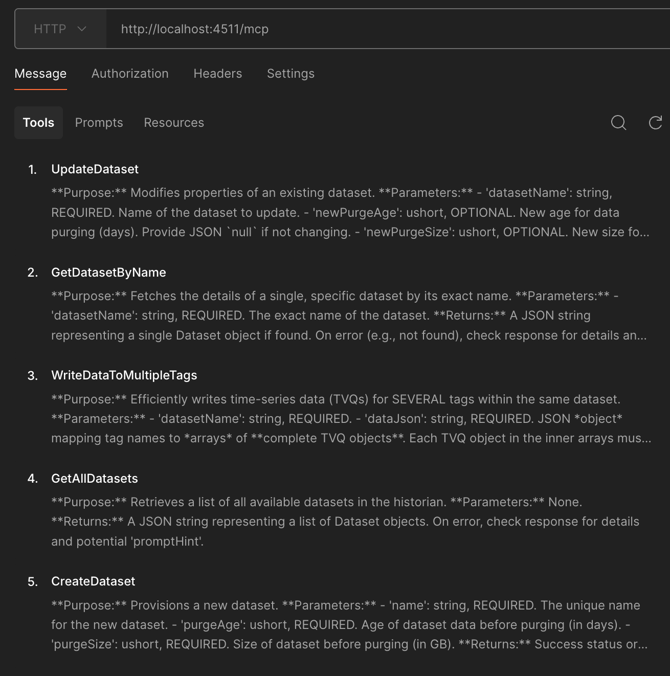
NOTE: The default HTTP port is 4511 and the default HTTPS port is 4512. Your port and IP address may be different if you changed the port and IP.
How to use it?
More and more AI Agents and Assistants are adding support for MCP Clients every day.
Please refer to the documentation for these MCP Clients to configure and troubleshoot where necessary.
We expect a number of AI Chat applications like ChatGPT will add support very soon. Here are some examples:
Agents
Assistants
Frameworks
Please see an example of Claude's configuration file settings below:
"Timebase_Historian_MCP": {

            "command": "npx",

            "args": [

                "-y",

                "mcp-remote",

                "http://<YourIpAddressHere>:4511/mcp/sse",

                "--transport",

                "sse-only",

                "--allow-http"

            ],

            "timeout": 30000,

            "initTimeout": 10000

        }
Note: The MCP Server is a Historian feature add-on available to use for free while in BETA. See Licensing.
Troubleshooting
| Symptom | Likely cause | What to do |
|---|---|---|
| Connection fails in Postman or an AI client | The Historian service is not running, or the IP address or port in the URL is wrong | Open the Timebase Service Starter and confirm the Historian is active. Check that the IP and port in the MCP URL match your Historian's configured HTTP endpoint (default: port 4511) |
| The AI client connects but returns no tools or prompts | The client is using STDIO transport instead of HTTP (SSE) | In the client settings, select HTTP or Streamable HTTP (SSE) as the transport type — the Historian MCP Server does not support STDIO |
404 error when accessing /mcp |
The Historian version does not include the MCP Server, or the path is wrong | Confirm the Historian is version 1.3.x or later. The full entry-point path must end with /mcp, e.g. http://<address>:4511/mcp |
| SSL/TLS error when using the HTTPS address | The AI client does not trust the Historian's certificate | Use the HTTP endpoint for testing (port 4511). For production over HTTPS (port 4512), ensure the client trusts the certificate — if using Pulse as a Root CA, copy pulse-ca.cer into the client's trusted certificate store |